Tampilkan postingan dengan label galaxy. Tampilkan semua postingan

How to Update Galaxy Fame S6810 with Android 4 1 2 XXAME2 Jelly Bean Official Firmware

Minggu, 05 Januari 2014

Samsung has released Android 4.1.2 Jelly Bean firmware update with base firmware XXAME2 on the Samsung Galaxy Fame with model number GT-S6810. The new official firmware is currently available in select Southeast Asia countries as an Over-The-Air (OTA) update as well as through Samsung KIES.

Firmware details
PDA: S6810XXAME2
CSC: S6810OLBAME1
MODEM: S6810DXAME1
Version: Android 4.1.2
Built date: May 31, 2013
Regions: Indonesia, Vietnam

Samsung Galaxy Fame S6810 users who missed the OTA update notification or unable to access the update over Samsung KIES, may follow our step-by-step guide to install the update manually.

Pre-requisites
1. Install USB Drivers for Samsung Galaxy Fame on the computer.
2. Enable USB Debugging Mode on the phone by navigating to Settings >> Developer Options.
3. Make a backup of all your important data before following the guide.
4. Ensure the battery of the phone is charged more than 80 per cent.
5. The Android 4.1.2 XXAME2 Jelly Bean firmware is compatible only with Samsung Galaxy Fame S6810. Applying this to any incorrect variant might brick the device. Verify the model number of the Galaxy Fame by navigating to Settings >> About Phone.

File Required
1. Android 4.1.2 XXAME2 Jelly Bean Firmware for Samsung Galaxy Fame S6810
2. Odin 3.07

Steps to Update Galaxy Fame S6810 with Android 4.1.2 XXAME2 Jelly Bean Firmware
Step 1: Extract Firmware zip file that you downloaded already from above link using winrar/7zip/winzip or any other extracting tool, you will get a .tar.md5 file and some other files.
Step 2: Extract Odin zip file and you will get Odin3 v3.07.exe along with few other files.
Step 3: Power off your phone. Wait 5-6 seconds for vibration to confirm complete switch off.
Step 4: Boot the device into Download Mode by pressing and holding Volume Down + Home buttons together and then press the Power button until the device turns on. Now press the Volume Up button to enter Download Mode.
Step 5: Run Odin on the computer as an Administrator.
Step 6: Connect the Galaxy Fame to the computer using USB cable while it is in the Download Mode. Wait until Odin detects the device. When the device is connected successfully, the ID: COM box will turn blue with the COM port number. Additionally, the successful connected will be indicated by a message saying Added.
Note: If the Added message does not appear, then try re-install USB drivers or changing the port on the computer.
Step 7: Choose the following files in Odin from extracted S6810XXAME2 firmware folder by using respective checkboxes:
  • Select the PDA checkbox, and choose the file named .tar or .md5.
  • Click the Phone checkbox, and choose the file with modem in its name (ignore if there is no such file)
  • Click the CSC checkbox, and select the file with csc in its name (ignore if such file is missing)
  • Choose the PIT checkbox, and choose the .pit file. Use only the file obtained during extracting in step 1 above, otherwise ignore it.
Step 8: In Odin, enable Auto Reboot and F. Reset Time checkboxes. Also, ensure the Re-Partition checkbox is chosen only if a .pit file was chosen in the previous step.
Step 9: Verify everything suggested in Step 7 and Step 8 is done correctly. Then hit the START button to begin the installation process.
Step 10: Once the installation process is completed, your phone will restart and soon you will see a PASS message with green background in the left-most box at the very top of the Odin. You can now unplug the USB cable to disconnect your device from computer.

Samsung Galaxy Fame S6810 should be now updated with official Android 4.1.2 XXAME2 Jelly Bean. Head over to Settings >> About Phone to verify the software version running on the device.

Note: If Galaxy Fame S6810 stuck at booting animation after Step 10 then go to recovery mode (press and hold the Volume Up, Home and Power buttons together) and perform Wipe data/Factory Reset and Wipe Cache Partition task before selecting reboot system now function. In recovery mode use Volume keys to navigate between options and Power key to select the option. Please note, performing wiping task will erase your device internal memory data and not external SD card data.

Click here to know How to Root Galaxy Fame S6810 running on Android 4.1.2 Jelly Bean firmware.
Read More..

How to Update Galaxy Grand Duos I9082 with Android 4 2 2 XXUBMK7 Jelly Bean Official Firmware

Sabtu, 04 Januari 2014

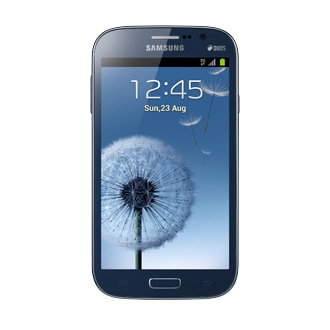
Samsung has just released a new software update for the Galaxy Grand Duos (GT-I9082). This latest update is still based on Android 4.2.2 Jelly Bean and now available in Southeast Asian countries as an Over-The-Air (OTA) update as well as through Samsung KIES.

Firmware details
PDA: I9082XXUBMK7
CSC: I9082OLBBMK1
MODEM: I9082DXUBMI1
Version: Android 4.2.2
Build date: Nov 26, 2013
Regions: Indonesia, Malaysia, Philippines, Singapore, Vietnam, Thailand

Samsung Galaxy Grand Duos I9082 users who missed the OTA update notification or unable to access the update over Samsung KIES, may follow our step-by-step guide to install the update manually.

Pre-requisites
1. Install USB Drivers for Samsung Galaxy Grand Duos on the computer.
2. Enable USB Debugging Mode on the phone by navigating to Settings >> Developer Options.
3. Make a backup of all your important data before following the guide.
4. The Galaxy Grand Duos should be factory unlocked and not locked to any particular carrier.
5. Ensure the battery of the phone is charged more than 80 percent.
6. The Android 4.2.2 XXUBMK7 Jelly Bean firmware is compatible only with the Samsung Galaxy Grand Duos (GT-I9082). Applying this to any incorrect variant might brick the device. Verify the model number of the Galaxy Grand Duos by navigating to Settings >> About Phone.

Files Required
1. Android 4.2.2 XXUBMK7 Jelly Bean Firmware (Mirror Link 1, Link 2) for Galaxy Grand Duos I9082
2. Odin 3.07

Steps to Update Galaxy Grand Duos I9082 with Android 4.2.2 XXUBMK7 Jelly Bean Firmware
Step 1: Extract Firmware zip file using winrar/7zip/winzip or any other extracting tool, you will get a .tar.md5 file and some other files.
Step 2: Extract Odin zip file and you will get Odin3 v3.07.exe along with few other files.
Step 3: Switch off the Galaxy Grand Duos.
Step 4: Boot the device into Download Mode by pressing and holding Volume Down, Home and Power buttons together until a construction Android robot icon with a warning triangle appears on screen. Now press the Volume Up button to enter Download Mode.
Step 5: Run Odin on the computer as an Administrator.
Step 6: Connect the Galaxy Grand Duos to the computer using USB cable while it is in the Download Mode. Wait until Odin detects the device. When the device is connected successfully, the ID: COM box will turn to light blue with the COM port number. Additionally, the successful connected will be indicated by a message saying Added.

Note: If the Added message does not appear, then try re-install USB drivers or changing the port on the computer.

Step 7: Select the following files in Odin from extracted I9082XXUBMK7 firmware folder:
  • Click the PDA button and select the .tar.md5 file.
  • Click the Phone button and select file with MODEM in its name. Ignore if there is no such file.
  • Click the CSC button and select file with CSC in its name. Ignore if there is no such file.
  • Click the PIT button and select the .pit file. Ignore if there is no such file.
Step 8: In Odin, enable Auto Reboot and F. Reset Time checkboxes. Also, ensure the Re-Partition checkbox is chosen only if a .pit file was chosen in the previous step.
Step 9: Verify everything suggested in Step 7 and Step 8 is done correctly. Then hit the Start button to begin the installation process.
Step 10: Once the installation process is completed, your phone will restart and soon you will see a PASS message with green background in the left-most box at the very top of the Odin. You can now unplug the USB cable to disconnect your device from the computer.

Samsung Galaxy Grand Duos I9082 should be now updated with official Android 4.2.2 XXUBMK7 Jelly Bean. Head over to Settings >> About Phone to verify the software version running on the device.

Note: If Galaxy Grand Duos I9082 stuck at booting animation after Step 10 then go to recovery mode (press and hold the Volume Up, Home and Power buttons together) and perform Wipe data/Factory Reset and Wipe Cache Partition task before selecting reboot system now function. In recovery mode use Volume keys to navigate between options and Power key to select the option. Please note, performing wiping task will erase your device internal memory data and not external SD card data.

Click here to know How to Root Galaxy Grand Duos I9082 running on Android 4.2.2 Jelly Bean firmware.
Read More..

How to Update Galaxy Grand Duos I9082 with Android 4 2 2 XXUBMGA Jelly Bean Official Firmware

Russian owners of the Samsung Galaxy Grand Duos (GT-I9082) has just received the Android 4.2.2 Jelly Bean update with firmware build number I9082XXUBMGA.

Firmware details
PDA: I9082XXUBMGA
CSC: I9082OXEBMGA
MODEM: I9082XXUBMGA
Version: Android 4.2.2
Built date: Jul 29, 2013
Regions: Russia

This update brings some new stuff on the Galaxy Grand Duos such as lockscreen widgets, dedicated toggles menu in the status bar, improved task switching, Daydream screensaver mode, and performance enhancements.

The new official firmware is now available as an Over-The-Air (OTA) update as well as through Samsung KIES. However, those who missed the OTA update notification or unable to access the update over Samsung KIES, and those who are residing outside Russia can now download and install the same manually, using our step-by-step guide.

Pre-requisites
1. Install USB Drivers for Samsung Galaxy Grand Duos on the computer.
2. Enable USB Debugging Mode on the phone by navigating to Settings >> Developer Options.
3. Make a backup of all your important data before following the guide.
4. The Galaxy Grand Duos should be factory unlocked and not locked to any particular carrier.
5. Ensure the battery of the phone is charged more than 80 per cent.
6. The Android 4.2.2 XXUBMGA Jelly Bean firmware is compatible only with Samsung Galaxy Grand Duos I9082. Applying this to any incorrect variant might brick the device. Verify the model number of the Galaxy Grand Duos by navigating to Settings >> About Phone.

File Required
1. Android 4.2.2 XXUBMGA Jelly Bean Firmware (Mirror Link 1Link 2)
2. Odin 3.07

Steps to Update Galaxy Grand Duos I9082 with Android 4.2.2 XXUBMGA Jelly Bean Firmware
Step 1: Extract Firmware zip file using winrar/7zip/winzip or any other extracting tool, you will get a .tar.md5 file and some other files.
Step 2: Extract Odin zip file and you will get Odin3 v3.07.exe along with few other files.
Step 3: Power off your phone.
Step 4: Boot the device into Download Mode by pressing and holding Volume Down, Home and Power buttons together until a construction Android robot icon with a warning triangle appears on screen. Now press the Volume Up button to enter Download Mode.
Step 5: Run Odin on the computer as an Administrator.
Step 6: Connect the Galaxy Grand Duos to the computer using USB cable while it is in the Download Mode. Wait until Odin detects the device. When the device is connected successfully, the ID: COM box will turn blue with the COM port number. Additionally, the successful connected will be indicated by a message saying Added.

Note: If the Added message does not appear, then try re-install USB drivers or changing the port on the computer.

Step 7: Choose the following files in Odin from extracted I9082XXUBMGA firmware folder by using respective checkboxes:
  • Select the PDA checkbox, and choose the file named .tar or .md5.
  • Click the Phone checkbox, and choose the file with modem in its name (ignore if there is no such file)
  • Click the CSC checkbox, and select the file with csc in its name (ignore if such file is missing)
  • Choose the PIT checkbox, and choose the .pit file. Use only the file obtained during extracting in step 1 above, otherwise ignore it.
Step 8: In Odin, enable Auto Reboot and F. Reset Time checkboxes. Also, ensure the Re-Partition checkbox is chosen only if a .pit file was chosen in the previous step.
Step 9: Verify everything suggested in Step 7 and Step 8 is done correctly. Then hit the Start button to begin the installation process.
Step 10: Once the installation process is completed, your phone will restart and soon you will see a PASS message with green background in the left-most box at the very top of the Odin. You can now unplug the USB cable to disconnect your device from computer.

Samsung Galaxy Grand Duos I9082 should be now updated with official Android 4.2.2 XXUBMGA Jelly Bean. Head over to Settings >> About Phone to verify the software version running on the device.

Note: If Galaxy Grand Duos I9082 stuck at booting animation after Step 10 then go to recovery mode (press and hold the Volume Up, Home and Power buttons together) and perform Wipe data/Factory Reset and Wipe Cache Partition task before selecting reboot system now function. In recovery mode use Volume keys to navigate between options and Power key to select the option. Please note, performing wiping task will erase your device internal memory data and not external SD card data.

Click here to know How to Root Galaxy Grand Duos I9082 running on Android 4.1.2 XXAMCE Jelly Bean firmware.
Read More..

Galaxy S3 Analog Clock APK v1 5 1 5

Jumat, 12 Juli 2013


Galaxy S3 Analog Clock APK v1.5 (1.5)

Updates: HOW TO APPLY WIDGET

Android 1.6-2.3

  1. Press and Hold Home screen 
  2. Choose Widget and select "Galaxy S3 Analog Clock"


Android 3.0-4.2

  1. Open App drawer and click Widgets, locate "Galaxy S3 Analog Clock"
  2. Press and hold widget to place on home screen.
  3. (If you have a Problem with the Clock, Please prior to rating please email me directly and i will resolve the issue)


Download
Read More..

Galaxy S3 Note2 HD GO Theme v3 4 apk download

Kamis, 27 Juni 2013


REQUIRES ANDROID:2.0 and up

Description
The difference is in the details. Now you can enjoy the look of the latest Jelly Bean version of Galaxy S3 and Note2 Touchwiz launcher from Samsung, without having to loose out on all the features and options of the GO Launcher EX, nor the graphics resolution of the Galaxy S3 or Note2 with this theme with HD wallpapers and over 600 HD icons!
YOU NEED GO LAUNCHER EX INSTALLED FOR THIS THEME, it wont load without it. Download it free in Google Play.
Apex Launcher EX and ADW Launcher theme versions available at Google Play Store as well.
Iconpack and wallpapers compatible with NOVA launcher.
Check out also the multi-launcher version of this theme, compatible with the most popular lanchers and 1500 icons!
https://play.google.com/store/apps/details?id=com.rennlab.multilauncher.theme.siii
For video tutorials on installation and configuration visit: http://rennlab.blogspot.com.es/
____

THIS THEME FORCES NO PERMISSIONS TO RUN.
UNLIKE FREE THEMES, THERE ARE NO ADDS, NO PUSH NOTIFICATIONS, NO ADWARE.
This Galaxy S3 & Note2 GO Launcher Theme is compatible will all screen resolutions, and android versions from 2.0 upwards. Even 4.x.x JellyBean devices.
____

Galaxy S3 & Note2 HD TouchWiz Theme:
** HD Graphics! All the artwork has been done in the highest resolution allowed in Go Launcher, with the original Galaxy S3-Note2 Touchwiz icons and over 600 common app icons done all in large 128x128 HD resolution from scratch, instead of the normal 72x72 standard icons commonly used in the themes, the wallpapers are also in higher than standard GO Theme resolution.
This is specially important in the higher screen resolution phones and tablets or if we like to use the "large icons" setting in GO Launcher. Makes your screen look very sharp and detailed.
** Special care has been taken to be the most faithful GO Launcher Theme reproduction of Samsungs Galaxy S3 -Note2 Launcher. From the basic TouchWiz icons and wallpapers to the details like exact matching colors used, menu icons, the folder interface, the indicators, the appdrawer, etc.
** Updated to reflect the changes in Touchwiz launcher made in the latest Jelly Bean versions of Galaxy 3 and Note 2.
** Includes all the original Galaxy S3 and Note 2 wallpapers and in HD size.
** This theme asks of no unsafe permissions to install. No adds.

____
This Galaxy S3 & Note2 GO Launcher Theme has a companion GO Locker theme! Find it in GooglePlay! Install it to have the full Galaxy S3 TouchWiz 5 experience.
Type "Galaxy S3 TouchWiz GO Locker" in GooglePlays search bar.
____
IMPORTANT! This theme has close to 600 icons. If an icon has not been replaced, check to see if its included in the theme and change it manually:
-> Tap and hold the icon while on the desk screen (will not work in the AppDrawer) -> Select "Replace" -> search and select the icon.
____

=== EXTRA CONFIGURATIONS ===
(videotiutorials at: http://rennlab.blogspot.com.es/)

**** Set page indicators to show on bottom of the screen
-> Preferences -> Visual settings -> Indicator -> Indicator position-> Bottom of screen

**** To take advantage of the large resolution 128x128 icons included in this theme, you can display the icons in a larger size on your screen
-> Preferences -> Visual settings -> Icons -> Icon size -> Large size.

**** Install the audio media files from the Galaxy S3:
-> Download rar file:
Link: www.mediafire.com/download.php?26wskymzz43wywr
-> Unzip rar file, inside you will find all the ogg files classified by type in folders
-> Copy the ringtones into the SDcard folder so they show up in the ringtones selection. If your phone can not play ogg convert them to mp3.
-> For Samsung Phones: Copy ogg files into the correct /SYSTEM/MEDIA/AUDIO folders with any root explorer then RE-BOOT. And make sure set permission to rw-r-r by root explorer.
____________________________
Follow us on:
Twitter-> @RennlabDesign
Youtube-> youtube.com/RennLab

******************
Google Play Store
Cost:- Rs.70.91

Download Full Version Here:-


File size:-43 Mb
Read More..